Notification Settings
Notifications
The Notifications tab lets you choose how SoundSwitch alerts you when an audio device is switched or when your microphone is muted or unmuted.
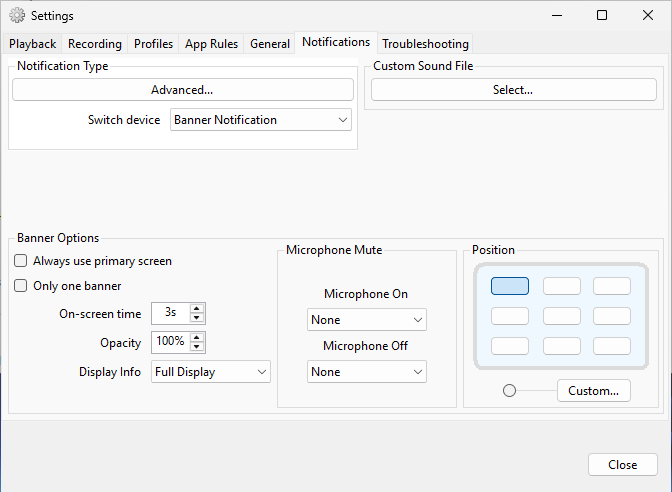
Notification Type
The Notification Type panel controls which notification method is used and provides an Advanced... toggle to reveal additional options.
- Switch device — Sets the notification style used when switching audio devices via hotkey. Options include Banner Notification, Windows Notification, Sound, or None.
- Advanced... (checkbox) — When checked, reveals additional notification controls: Switch profile (notification for profile activation) and Microphone mute (notification for mute toggle). The panel height expands to accommodate these options.
The Windows Notification option is rendered as a native Windows toast: it appears in and persists in the Action Center, follows the on-screen time, and shows the real device icon. It requires Windows 10 version 1809 or later; on older Windows versions it falls back to a legacy notification balloon.
Custom Sound File
Click Select... to choose an audio file that SoundSwitch plays when a device is switched (or when the relevant notification fires). Click the delete (×) button to remove the custom sound and go back to the built-in sound.
Supported audio formats:
- WAV (
.wav) - MP3 (
.mp3) - AAC (
.aac,.m4a)
The file is loaded into memory and played through your selected playback device using the system's default audio endpoint, so playback works without any extra setup. If the chosen file is missing, corrupt, or in an unsupported format, SoundSwitch silently falls back to the built-in notification sound.
Banner Options
Banner notifications are designed to never steal focus from other applications. They are shown as non-activating windows, so full-screen games and other apps should not minimize or lose focus when a banner appears.
Exclusive Fullscreen Detection
When a game or application is running in true exclusive fullscreen mode (where the game takes exclusive control of the display output and DWM composition is suspended), SoundSwitch automatically switches from banner notifications to Windows Toast notifications. In true exclusive fullscreen, no overlay window can appear on screen, so toast is the only way to deliver a notification.
SoundSwitch detects true exclusive fullscreen using a layered approach:
- Windows notification state — SoundSwitch queries
SHQueryUserNotificationState, the only Windows API that explicitly signals "a D3D app is running in exclusive fullscreen mode." - Display mode change — If the foreground window covers the monitor and the current resolution or refresh rate differs from the desktop default, a process has taken exclusive control of the display output.
Borderless fullscreen games (including modern titles like Counter-Strike 2 that use the DXGI flip model) are handled normally with banner notifications. Banners are designed to never steal focus — they use non-activating window styles that do not trigger focus-loss events in the game.
When using banner notifications, you can customize their appearance and behavior:
- Only one banner — When checked, only one banner is shown at a time. If multiple events occur, they queue rather than stacking.
- On-screen time — How long the banner stays visible (in seconds, default is 3).
- Opacity — Banner transparency level (0–100%, default is 100).
- Background color — Opens a color picker and sets the banner's background color. The button shows the color currently in use.
- Scale — Scales the banner between 50% and 200% (default 100%), so it stays readable on high-DPI displays.
- Display Info — How much detail to show on the banner: Full Display (device name and icon), Name Only, or Icon Only.
Changing any of these options refreshes banners that are already on screen instead of waiting for the next notification.
Microphone Mute
Controls the notification behavior when the microphone mute toggle is activated:
- Microphone On — Notification style when the microphone is unmuted. Options include None, Fading In, or Persistent.
- Microphone Off — Notification style when the microphone is muted. Options include None, Fading In, or Persistent.
Position
Monitor
The dropdown at the bottom of the Position group selects which display the banner appears on:
- Screen with cursor — the display the mouse pointer is on at the time the banner appears (default).
- Primary screen — always the primary display.
- Monitor N (
\\.\DISPLAYn) — pins the banner to a specific connected display.
The list is rebuilt when a display is plugged in or unplugged. If a pinned monitor is disconnected, the banner falls back to the cursor/primary behavior.
Placement
Select where on the screen the banner appears using the 3×3 grid of radio buttons:
| Left | Center | Right |
|---|---|---|
| Top Left | Top Center | Top Right |
| Center Left | Center | Center Right |
| Bottom Left | Bottom Center | Bottom Right |
A Custom... option with a slider lets you drag the banner to any position on your screen for fine-tuned placement. A saved custom position follows the monitor it was dragged onto, and pressing R while dragging resets it.