
App Rules (App Sound Lock)
App Rules (App Sound Lock)
App Rules — also called App Sound Lock — route individual applications to specific audio devices without changing the system default. Use it when you want Spotify on your speakers while your game stays on your headset.
Each rule targets an application (and optionally a window title) and owns an ordered list of device pairs. A pair contains a playback device, a recording device, or both.
Two modes
| Mode | What it does | Best for |
|---|---|---|
| Automatic | Applies the rule's first device pair whenever the application starts or comes to the foreground. | Hands-free routing that should always be active. |
| Hotkey | Does nothing automatically. Pressing the rule's hotkey applies the next device pair to the running application. | Cycling an application between several devices on demand. |
The modes are exclusive. A rule is either Automatic or Hotkey, never both. See Automatic mode and Hotkey mode for the details.
How it works
App Rules use the Windows Audio Session APIs to target specific processes. Only the matched application's audio is redirected; the system default device remains unchanged.
Rules are evaluated in two ways:
- Automatic rules are evaluated whenever a new process is detected and whenever the foreground window changes.
- Hotkey rules are applied only when you press their hotkey. The rule then looks for every running process that matches it.
A rule matches on:
| Field | What it matches | Example |
|---|---|---|
| Process Path | The process path or name. Matched as a regular expression, with a glob fallback (*chrome*). | .*chrome\.exe.* matches any Chrome process |
| Window Title | The title of the application's active window. Also regex with a glob fallback. | .*YouTube.* matches any window with "YouTube" in the title |
If a field is left blank, it acts as a wildcard. A rule with only a Process Path matches that process regardless of its window title.
The App Rules list
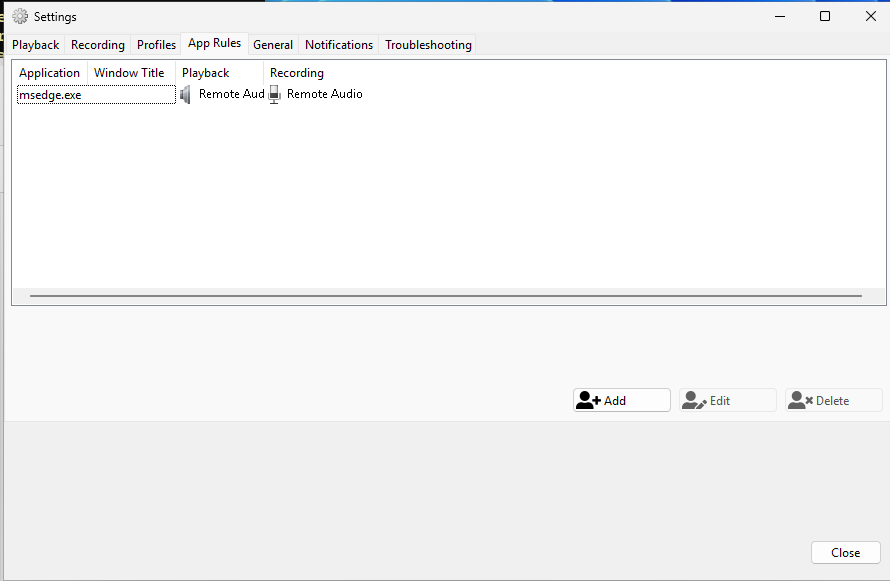
The App Rules tab lists every rule with these columns:
| Column | Description |
|---|---|
| Application | The process name or path the rule matches. |
| Window Title | The window title pattern, or blank for any window. |
| Playback | The first pair's playback device. |
| Recording | The first pair's recording device. |
| Mode | Automatic or Hotkey. Hotkey rules with several pairs also show the pair count, for example Hotkey (3). |
| Hotkey | The rule's global shortcut, for Hotkey rules. |
Hover a row to see every device pair in a tooltip.
Rule options
| Option | Description |
|---|---|
| Enabled | Turns the rule on or off without deleting it. Disabled rules are ignored and their hotkeys are not registered. |
| Notify when triggered | Shows a notification when the rule routes an application. Useful while setting a rule up. |
| Case Sensitive | Makes the process and window patterns case-sensitive. |
The process picker
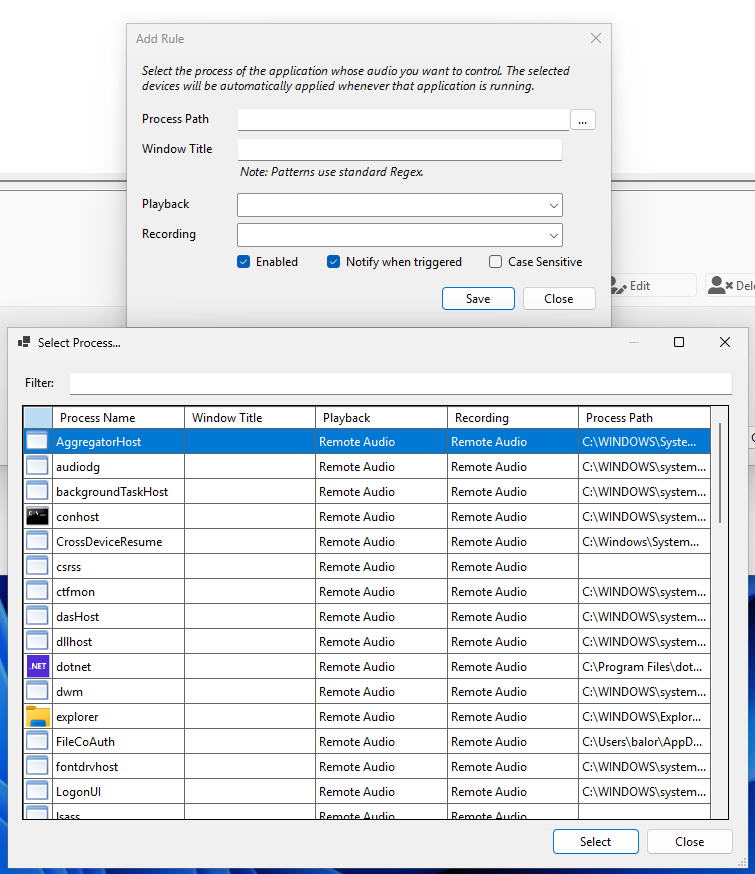
The Process Path field has a ... button. It opens a process picker that lists running processes with their process name, window title, current playback and recording devices, and full path. Select a process to pre-fill the pattern, or use the filter box to narrow the list.
Creating a rule
- Open the App Rules tab in SoundSwitch Settings.
- Click Add.
- Use ... next to Process Path to pick the application, or type a pattern manually.
- Optionally set a Window Title pattern.
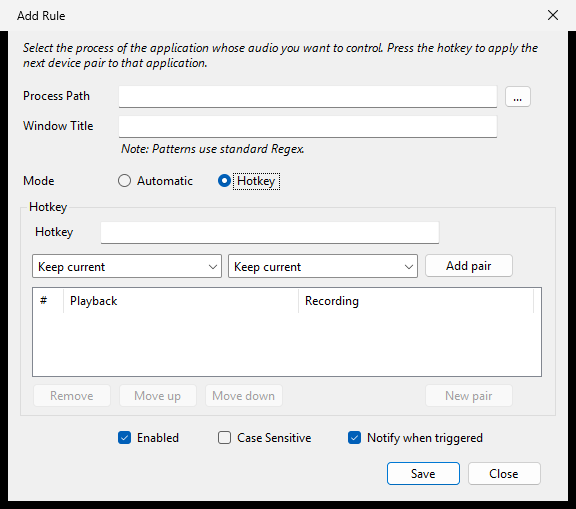
- Choose a Mode:
- Automatic — select the playback and/or recording device the application should always use.
- Hotkey — press the shortcut you want, then build the ordered device-pair list. See Device pairs.
- Adjust Enabled, Case Sensitive, and Notify when triggered as needed.
- Click Save.
Managing rules
- Edit: select a rule and click Edit, or double-click it.
- Enable/disable: use the checkbox in the list. The change is saved immediately and the rule's hotkey is registered or released.
- Delete: select a rule and click Delete.
When routing is applied
- Automatic rules apply as soon as a matching process starts or becomes the foreground window.
- Hotkey rules apply only when you press the shortcut, and only to the matching application's running processes.
- Routing persists while the application is running. If the application restarts, an Automatic rule re-applies; a Hotkey rule waits for the next press.
Device changes
Rules store a device identity, not just a device name. If a device gets a new id after a driver update, SoundSwitch resolves it by its device-instance path or unique name and updates the stored identity automatically. If a device is unplugged, the affected side of a pair is skipped until the device is available again.
Resetting per-app routing
If routing gets into a confusing state, open the Troubleshooting tab and use Reset under Reset Per App Audio. This clears all process-level assignments so Windows can reassign applications to their default devices. After the reset, Automatic rules re-apply on the next process or window event; Hotkey rules wait for you to press their shortcut again.
App Rules vs Profiles
App Rules route individual applications to specific devices. The system default device does not change.
Profiles change the system default device when a trigger fires. This affects every application that uses the default device.
See Profiles vs App Rules for the full comparison.
Telemetry and privacy
When telemetry is enabled, App Rule activations are counted anonymously. SoundSwitch records only a SHA256 hash of the matched process basename (the first 8 hex characters) and the trigger source. No process path or window title is sent. See Privacy and Telemetry for details.
In this section
- Automatic mode — one pair, applied whenever the application matches.
- Hotkey mode — cycle device pairs with a shortcut.
- Device pairs — build and order the playback/recording combinations.
- Examples — ready-to-adapt rules for common setups.
- Troubleshooting — when a rule or hotkey does not do what you expect.