
Automatic mode
10/23/26About 2 min
Automatic mode
Automatic mode is the original App Rule behaviour: the rule applies its first device pair whenever the application starts or becomes the foreground window. No hotkey or manual action is involved.
Use Automatic mode when an application should always use the same audio devices.
What it does
- The rule is evaluated when a new process is detected and whenever the foreground window changes.
- When the process and window patterns match, SoundSwitch routes the application's audio to the rule's device pair.
- The system default device is not changed. Other applications keep using the default.
- The rule applies only the first device pair. Extra pairs are not used in Automatic mode.
Configure an Automatic rule
- Open App Rules in SoundSwitch Settings and click Add.
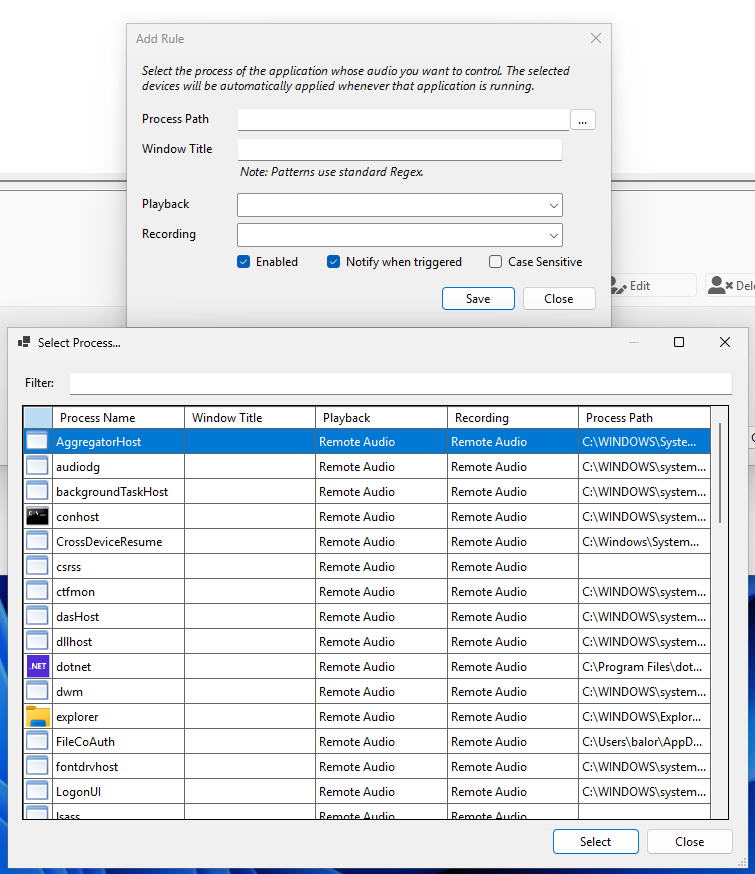
- Select the application with ... or type a pattern in Process Path.
- Optionally narrow the rule with a Window Title pattern.
- Choose Automatic as the mode.
- Select a Playback device, a Recording device, or both. At least one is required.
- Click Save.
Example
| Field | Value |
|---|---|
| Process Path | .*chrome\.exe.* |
| Window Title | .*YouTube.* |
| Mode | Automatic |
| Playback | Speakers |
| Recording | (not set) |
Every time a Chrome window whose title contains "YouTube" comes to the foreground, Chrome's playback moves to the speakers. Chrome's recording device is left alone.
Behaviour details
- Both devices together. A pair can set playback and recording. When both are set, both are applied.
- One side is enough. Leave a side unset to keep the application's current device on that side.
- Re-evaluated on focus. Switching back to the application can re-apply the rule if Windows moved its audio in the meantime.
- Multiple matching processes. Each matching process is routed when its own process or foreground event is handled. For example, a browser with several child processes is rerouted as each one starts or comes to the foreground — the rule does not push a group update to every matching process when only one of them gains focus.
- Unavailable device. If the stored playback or recording device is not currently active, that side is skipped and the other side is still applied. The skip is written to the log.
- Device changes. If a device gets a new id, SoundSwitch resolves it by its stable device-instance path or unique name and updates the stored identity. See Device pairs.
- Disabled rules keep their settings but are never applied.
Automatic or Hotkey?
Choose Hotkey mode instead when you want to decide when the application switches, or when you want to cycle through several device combinations. Automatic mode always uses one pair and applies it as soon as the application matches.
Related
- Device pairs — how playback and recording are combined.
- Examples — ready-to-adapt rules.
- Troubleshooting — when an Automatic rule does not apply.