
Hotkey mode
Hotkey mode
Hotkey mode turns an App Rule into a manual switch. The rule does nothing until you press its hotkey. Each press applies the next device pair to every running process that matches the rule.
Use Hotkey mode when you want to decide when an application switches, or when you want to rotate it through several playback/recording combinations.
What it does
- The rule has one global hotkey and an ordered list of device pairs.
- Pressing the hotkey finds every running process that matches the rule's process and window patterns.
- The current pair is applied to those processes. The next press applies the next pair, wrapping back to the first after the last one.
- Only the matched application is routed. The system default device is not changed.
- Hotkey rules are never applied automatically when the application starts or gains focus.
Configure a Hotkey rule
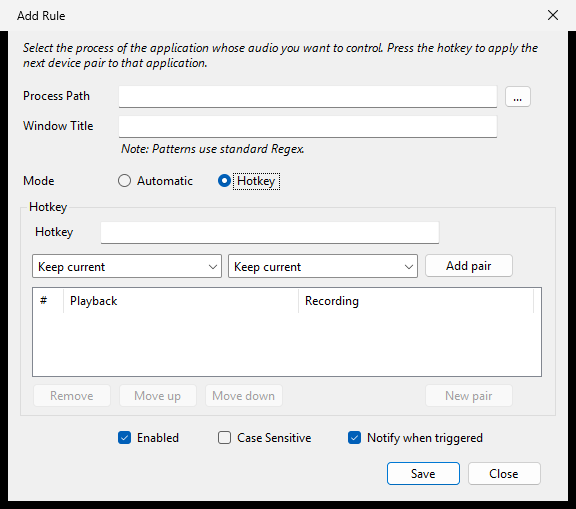
- Open App Rules in SoundSwitch Settings and click Add.
- Select the application with ... or type a pattern in Process Path.
- Optionally narrow the rule with a Window Title pattern.
- Choose Hotkey as the mode.
- Click the Hotkey field and press the shortcut you want. Click the clear button to remove it.
- Build the device-pair list. See Device pairs for the builder controls.
- Click Save.
Cycling behaviour
The cycle starts at the first pair and is kept in memory per rule.
| Press | Applied pair |
|---|---|
| 1st | Pair 1 |
| 2nd | Pair 2 |
| 3rd | Pair 3 |
| 4th | Pair 1 again |
- All matching processes receive the same pair on a press. Several browser or game child processes do not advance the cycle separately.
- The cycle advances when the application is running and the current pair has at least one available device. It advances even if that pair was already active, so the next press still moves to the next pair.
- A pair whose devices are all unavailable is not applied and does not advance the cycle. Plug the device back in and press again.
- The cycle resets to pair 1 when the App Rules are reloaded — adding, editing, deleting, enabling, or disabling any rule — and when SoundSwitch restarts. Editing a rule therefore resets its cycle, and changing another rule resets it too.
- The cycle does not reset just because the application exits. If you close the game and reopen it, the next press continues from where the cycle was.
- Pressing the hotkey with the application closed does not advance the cycle.
Nothing running
If no running process matches the rule, SoundSwitch shows a notification:
The application isn't running — nothing switched.
The cycle stays where it was, and no activation telemetry is recorded. This message is not controlled by the rule's Notify when triggered option: it is direct feedback for a manual action. It still follows the global notification type, so users who selected None will not see it.
Hotkey conflicts
The hotkey must be available system-wide:
- It cannot be used by another App Rule.
- It cannot be used by a Profile or another SoundSwitch feature.
- It cannot be registered by another application.
SoundSwitch validates the shortcut when you save the rule and shows an error if it is already in use.
Duplicate targets
Two Hotkey rules may not target the same Process Path and Window Title combination. Two rules cycling the same application would compete for the same audio sessions. The editor rejects the second rule with:
Another Hotkey rule already targets this application and window.
An Automatic rule and a Hotkey rule may target the same application. Remember that the Automatic rule can re-apply its pair when the application comes to the foreground.
Example
| Field | Value |
|---|---|
| Process Path | .*game\.exe.* |
| Window Title | (blank) |
| Mode | Hotkey |
| Hotkey | Ctrl + Shift + F1 |
| Pair 1 | Headset / Headset microphone |
| Pair 2 | Speakers / Keep current |
| Pair 3 | Keep current / Line In |
The first press routes the game to the headset and its microphone. The second press moves game playback to the speakers and leaves recording alone. The third press leaves playback alone and moves recording to Line In. The fourth press starts over.
Related
- Device pairs — build and order the cycle.
- Automatic mode — hands-free routing.
- Troubleshooting — when a hotkey does nothing.